
IMAP or SMTP: Your 2026 Guide to Email Protocols

IMAP and SMTP are not alternatives. You need both, because SMTP moves mail out and IMAP keeps mail available to read and sync. That split has been baked into email for decades, from the early mail standards that shaped modern delivery to the later work that made mailbox access practical across clients and devices. The old plumbing still matters, even if nobody gets excited about it at conferences. history of email milestones IMAP history and traffic context
People keep searching imap or smtp as if one should replace the other. The question is which workflow you need to support, sending, mailbox sync, reply handling, or app integration. Those are different jobs, and email breaks in different ways depending on which one you try to force into the wrong role. If you want a practical example of why that matters, look at how users expect delivery tracking or message state to behave in a client, then compare that with what a mail server stores and exposes. For a simple starting point, see how to check whether an email was read.
Table of Contents
The IMAP or SMTP Question Most People Are Asking Wrong
You don't choose between IMAP and SMTP, you configure both. That sounds like a fussy engineer's answer, but it's the practical one, because the email pipeline splits cleanly into two jobs, outbound delivery and inbound retrieval.
SMTP handles the sending side. IMAP handles the reading side, plus the state that makes a mailbox feel like the same mailbox on a laptop, phone, and tablet instead of three unrelated piles of messages.

The confusion persists because lots of guides compress the topic into a slogan. “SMTP sends, IMAP receives” is technically true, and also about as useful as saying a car has wheels, which is not wrong, just not enough to get you home.
Practical rule: if your tool needs to send a message, it needs SMTP. If it needs to read, sync, or preserve mailbox state on the server, it needs IMAP.
That's why the core question isn't which protocol is “better.” It's which part of the workflow you're enabling, sending, reading, syncing, or all three. Keep that in your head and half the setup mistakes disappear before they happen, which is rare and delightful in email.
What IMAP Does and Why SMTP Handles the Other Half
SMTP has been around since 1982, when it was standardized in RFC 821 by Jon Postel, and historical accounts place its implementation on the ARPANET in 1983. That long run matters because SMTP did not just survive, it became the protocol that moves outbound mail from one server to the next, and later gained security and authentication features that made it workable on modern networks.
IMAP came later. It was developed in 1986 at Stanford University by Mark Crispin and evolved into IMAP4, introduced in 1994 with disconnected-operation support. That design made IMAP useful for people who wanted the same mailbox visible from multiple places without downloading everything and pretending that was synchronization.
The mechanical split
SMTP's job ends when the next mail server accepts the message. It does not store your inbox, keep your folder list tidy, or remember which message you starred on your phone during a meeting.
IMAP does the other half of the work. It keeps mailbox state on the server so clients can synchronize folders, flags, and message changes across devices IMAP versus SMTP functional split. It also helps large mailboxes stay usable, because clients can fetch headers or selected parts before pulling the full message body IMAP bandwidth and latency behavior.
The scale of encrypted IMAP in the wild is hard to ignore. In a 2019 traffic study, researchers observed 2,726,213 IMAP connections on port 143 and 11,901,742 IMAPS connections on port 993. The same dataset recorded 530 GB for IMAPS compared with 18.5 GB for plain IMAP, with a median IMAP/143 connection duration of 0.00021 seconds and a mean of 117 seconds IMAP history and traffic context. That is a lot of mailbox chatter for a protocol people still describe as if it were a footnote.
If you are trying to see whether a message has been read, the protocol question sits underneath a bigger workflow question. A read-tracking workflow can sit alongside delivery tools in practice, because the thing you want is usually visibility, not a debate over port numbers read-tracking workflow reference.
IMAP vs SMTP Side by Side
SMTP and IMAP do different jobs, so the useful comparison is operational, not theoretical. SMTP handles outbound submission and relay, IMAP handles inbound retrieval and synchronization send versus receive distinction.
Dimension | IMAP | SMTP |
|---|---|---|
Core role | Retrieves and syncs mail stored on the server | Sends mail from a client to a server and between servers |
Session style | Ongoing mailbox state and synchronization | Short-lived transfer transaction |
Common secure ports | 993 | 587, 465 |
Main strength | Multi-device consistency, server-side folder state | Delivery control, relay, outbound handling |
Best fit | Large mailboxes, shared access, mobile and desktop sync | Inbox apps, CRMs, sequencing tools, transactional mail |
Limitation | No sending role | No mailbox sync or storage role |
The practical difference shows up in bandwidth and latency. IMAP can reduce both because a client can pull headers first, then fetch only the parts it needs IMAP bandwidth and latency behavior. SMTP does not do that work. Its job ends once the next hop accepts the message delivery-focused role of SMTP.
What the table usually hides
SMTP has no mailbox memory. It is built to hand off mail, then move on. That is why sending tools, relay servers, and transactional systems rely on it, while retrieval logic lives elsewhere.
IMAP has the opposite problem, if you can call it a problem. It is excellent for keeping a mailbox in sync across devices, but useless for delivery if nothing has been sent yet. That sounds obvious until someone points a sending app at an IMAP port and waits for a miracle. Mail protocols do not do improvisation.
For teams managing outbound campaigns, the distinction matters just as much as it does for a personal inbox. A investors email list still has to be sent through SMTP, even if the responses are read later in an IMAP client.
Ports, Security, and the TLS Question
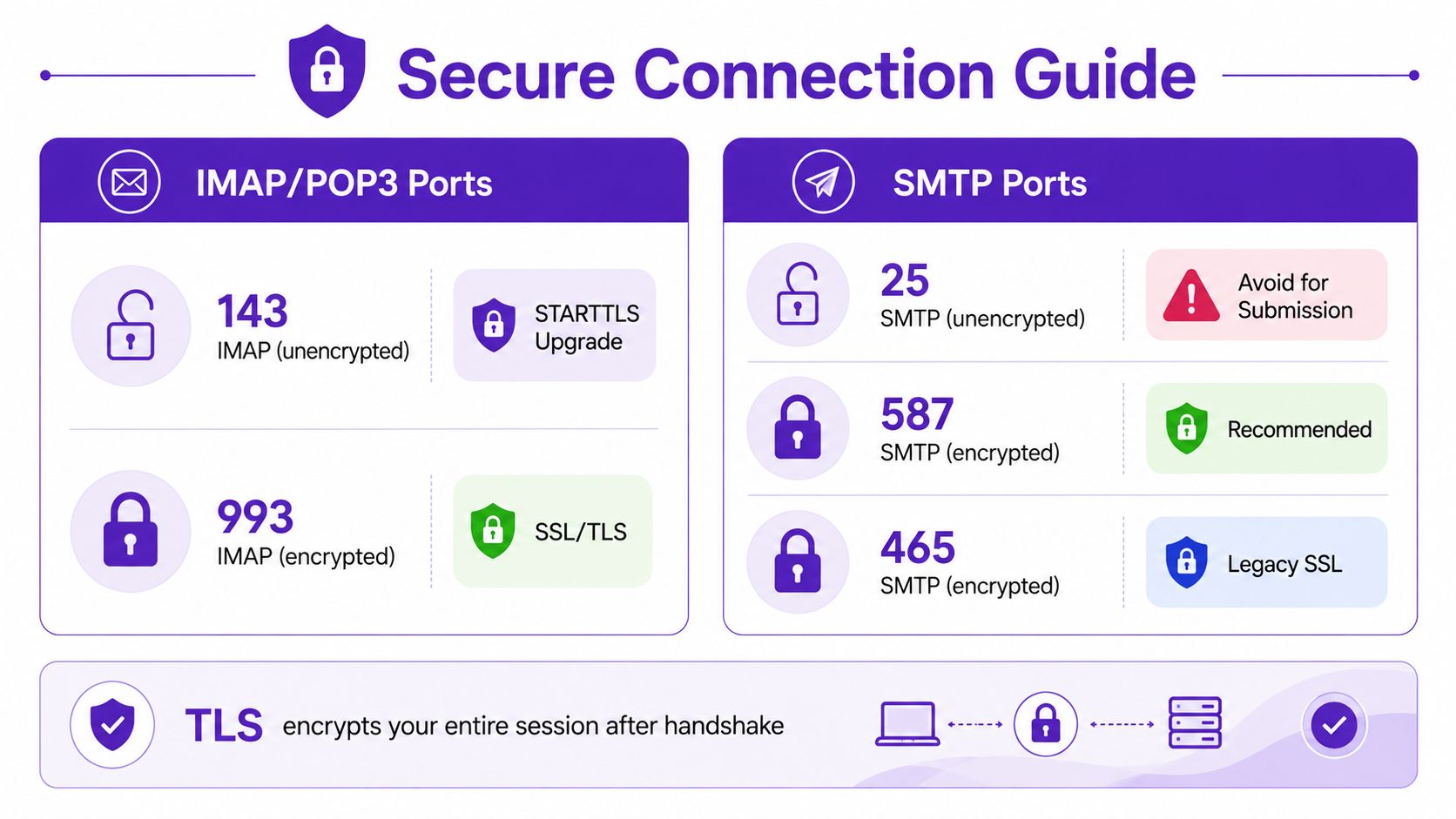
Ports are where a lot of otherwise competent setups go sideways. IMAP commonly uses 143 and 993, while SMTP commonly uses 25, 465, and 587 common email port ranges. Those numbers are not trivia, they're the difference between a secure configuration and a support ticket with a sad subject line.
For SMTP submission, 587 with STARTTLS is the safest and most broadly supported default, while 465 with implicit TLS is a modern recommendation tied to RFC 8314 secure SMTP port guidance. Port 25 should not be used for client submission, because it's often blocked by ISPs and was never meant to be the normal user-facing send port anyway secure submission warning.
IMAP's security story is simpler but less glamorous. If you want encrypted retrieval, 993 is the usual choice common email port ranges. Plain 143 still exists, but nobody's out there asking for more unencrypted email traffic unless they enjoy living dangerously or debugging legacy systems.
Key Trade-Offs in Connectivity
IMAP fits multi-device, server-synced access. That convenience comes with a dependency on a constant, stable internet connection, so it is a poor match for offline-first or privacy-first setups connectivity trade-off guidance. SMTP does not carry that sync burden, because it only handles submission and relay.
Pick the secure port your client or app supports, then make sure the protocol matches the direction of the traffic.
That is the part people usually miss. The useful question is not whether IMAP or SMTP is better in the abstract, it is which protocol and secure port combination fits this device mix, this connectivity pattern, and this security posture.
When to Use IMAP, SMTP, or POP3
The cleanest way to think about protocol choice is by job, not by brand loyalty. IMAP handles reading and syncing, SMTP handles sending, and POP3 still survives for narrow download-first workflows.

If you read mail on more than one device, IMAP is the sane default. If you are configuring an inbox app, CRM, or sequencing platform to send outbound mail, SMTP is the piece that matters. IMAP is what many tools use to monitor replies and thread activity, which is why the setup page often looks simpler than the resulting support ticket workflow confusion in practice.
Where each protocol fits
Personal multi-device inboxes: Use IMAP for retrieval and syncing, because the same mailbox needs to look the same on phones, laptops, and tablets.
Transactional and outbound systems: Use SMTP for delivery, because the server has to push messages out somewhere.
Single-device or download-first setups: POP3 can still make sense when the goal is local-only storage or a simple privacy-first workflow POP3 positioning.
The missing decision most guides skip
A lot of people are not really choosing between protocols, they are choosing which one to configure inside a tool. That is why inboxes, CRMs, and sequencing apps become confusing fast. One setting sends mail, another watches for replies, and users get blamed when the interface makes that separation look like a personality test workflow confusion in practice.
For outbound-heavy teams, the useful question is whether the system needs to send mail, read mail, or do both. A recruiting workflow, a support desk, and an investor outreach list each stress the mailbox in different ways, so the right setup depends on what the mailbox is supposed to do, not on which protocol sounds tidier investor outreach list guidance.
If your workflow needs only sending, SMTP is enough. If it needs reading and synchronization too, IMAP comes along for the ride, whether the interface makes that obvious or not.
How to Configure Your Email Client Correctly
Start with the direction of traffic. If the client needs to send messages, configure SMTP and use the secure submission port your provider supports, usually 587 with STARTTLS or 465 with implicit TLS secure SMTP port guidance. If it needs to read mail and keep folders in sync across devices, configure IMAP on 993 for encrypted access common email port ranges.
Most desktop clients ask for the same core fields, server, port, encryption, username, password. The part that matters is the port and encryption pair, because the rest is just the interface asking whether you read the provider notes or guessed confidently.
A reliable setup pattern
For sending: Choose SMTP, then prefer 587 + STARTTLS unless your provider explicitly requires 465 + implicit TLS secure SMTP port guidance.
For mailbox access: Choose IMAP, then use 993 for encrypted retrieval common email port ranges.
For app integrations: Use SMTP for outbound mail, and use IMAP when the app needs to watch replies, folder movement, or thread changes modern app behavior.
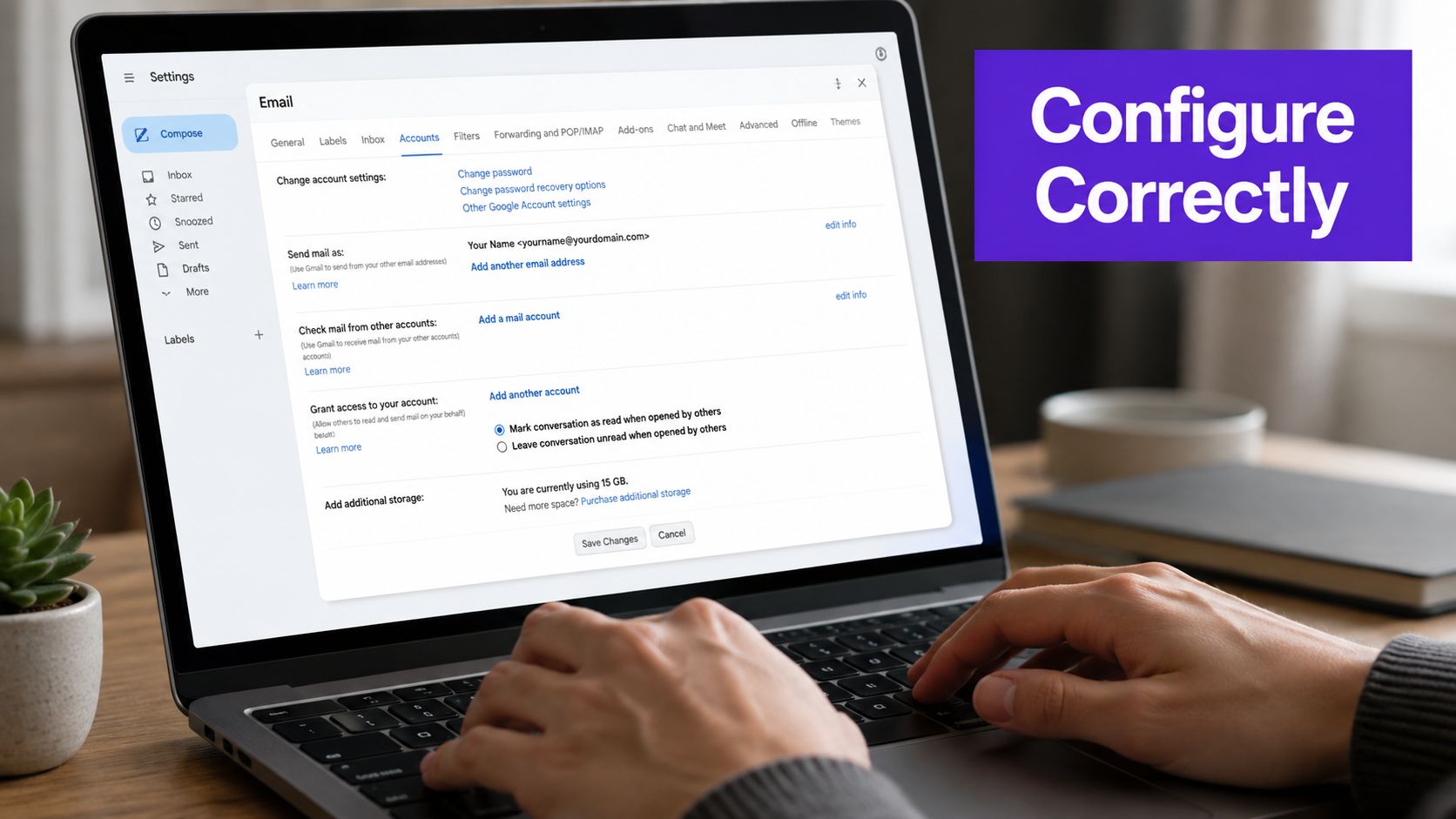
A CRM, help desk, or sequencing tool can be wired correctly and still behave badly if the mailbox role is unclear. I usually separate the workflow first, then touch the settings panel. If the system must send mail, SMTP handles that job. If it must also inspect replies, thread state, or folder changes, IMAP belongs in the setup too.
For address quality checks or reverse lookups tied to a mailbox workflow, use a dedicated email address reverse lookup guide instead of trying to make your mail client do detective work it was never built for.
What not to do
Do not point a sender at an IMAP port and expect a polite error. Do not assume SMTP can also read messages just because the app offers a reassuring checkbox. Do not use port 25 for client submission unless you enjoy discovering what your ISP thinks of your ambition secure submission warning.
Separate sending from reading before you save the profile. That small bit of discipline prevents the usual mess later, where replies vanish into one app while another app insists everything is fine.
Common SMTP and IMAP Errors and How to Fix Them
The failures are usually plain old setup mistakes with a fancy wrapper. SMTP tends to fail when authentication breaks, the submission port is wrong, or TLS negotiation does not match what the server expects. IMAP tends to fail when sync stalls, folders drift out of alignment, or a password changes and the client keeps pretending nothing happened.
Practical rule: if a sending tool is pointed at an IMAP port, or a sync tool is pointed at SMTP, the error message is usually less helpful than the setup mistake deserves.
SMTP authentication failures are usually the easiest to fix, which is a small mercy. Recheck the username and password, confirm the submission port your provider wants, and make sure the client is using the encryption mode the server accepts.
TLS mismatches are often one setting away from working. The client may be trying to start security on the wrong port, or it may be using plain submission where the server expects STARTTLS. Mail servers are not known for their sympathy here, but they are usually consistent if you meet them on their terms.
Fast diagnostics
Authentication failure: Username or password is wrong, or app passwords are required. Re-enter credentials and confirm the account can submit mail.
Connection timeout: The chosen port is blocked or unsupported. Switch to the provider's supported secure submission port.
IMAP sync delay: The client is slow to refresh or the mailbox is large. Force a resync and check server-side folder mapping.
Folder mismatch: The client and server disagree on folder names or special folders. Remap inbox, sent, and archive folders in the client.
Post-password-change failure: Cached credentials are stale. Reconnect the account and reauthorize it if the app supports token-based login.
If messages are landing in junk or getting held back before delivery, review the spam-filter avoidance notes. Protocol settings only get the mail to the server, and inbox placement is a separate problem with its own bad habits.
Which Protocol Setup Matches Your Situation
If you use email on multiple devices, the practical answer is IMAP for retrieval and SMTP for sending. That setup keeps the mailbox state in one place, so your phone, laptop, and desktop are not each trying to invent their own version of reality. Mail clients are messy enough without giving them competing memories.
For business apps, SMTP is the delivery path and IMAP is the reply-checking layer when the workflow needs to watch for responses. If the job is narrow and local, POP3 can still be the sensible choice, especially when one device owns the mailbox and nothing else needs to stay in sync. That is the kind of boring setup that usually causes fewer support tickets, which is a compliment.
Quick match guide
Mobile and desktop users: IMAP plus SMTP.
CRMs and sequencing tools: SMTP first, IMAP when reply monitoring matters.
Single-device archival setups: POP3 may fit.
Anything unclear: Start with the workflow, not the protocol name.
If you also need to check whether an address belongs to the person you think it does, the reverse lookup guide is the more useful next stop than another round of protocol name trivia.