LinkedIn CRM Integration That Actually Books Meetings

A prospect comments on your pricing post, sends a thoughtful DM, and mentions a problem your product solves. Someone on the team replies, “I'll add them to the CRM.” Then the comment disappears into a busy LinkedIn inbox, the follow-up lands in a spreadsheet, and the hot lead becomes a perfectly ordinary stranger again.
That's the problem with LinkedIn CRM integration. The hard part isn't connecting two logos. It's preserving intent, context, ownership, and follow-up long enough for a conversation to become pipeline. LinkedIn is useful for discovery and relationship signals, while your CRM handles records, stages, tasks, and revenue accountability. A good workflow joins those jobs without turning your database into a junk drawer.

Table of Contents
Turning LinkedIn Signals Into Automated Follow Ups That Stay Compliant
Measuring What Matters From Sync Health to Pipeline Velocity
Why LinkedIn Leads Vanish Before They Hit Your CRM
A rep spots a prospect's new role in Sales Navigator, sees a useful comment, or receives a question about implementation. The opportunity still disappears if the next step relies on memory, a copied name, or a spreadsheet waiting for its owner.
The lost value is context. “John Smith, interested” gives a seller almost nothing. “Commented on the pricing discussion, asked about implementation for a distributed team, follow up with the integration overview” preserves the buyer's concern and suggests a relevant response. That difference affects whether the next message feels timely or like a generic sequence wearing a blazer.
LinkedIn CRM integration should preserve intent through the handoff, not create contact records. LinkedIn's documented Sales Navigator integrations support matching members and companies with CRM leads, contacts, and accounts, along with ongoing synchronization through secure dedicated APIs. LinkedIn says CRM Sync data refreshes daily, while the Match Data Report updates every 24 hours. The LinkedIn Sales Navigator CRM integration overview explains the supported setup model and plan requirements.
Practical rule: Sync the reason a lead matters, not just the fact that the lead exists.
A profile view, relevant comment, job change, or discussion of a business problem carries different intent from a matching job title alone. Your workflow should record the approved signal, assign ownership, and create a next action that a rep can complete without guessing. Governance matters here: define which LinkedIn activity qualifies, which fields enter the CRM, and who can send follow-up.
That operating layer also needs a compliance boundary. A tool such as lead generation automation for LinkedIn can pass approved intent signals into a lightweight CRM inbox, but the team must control enrichment, storage, and outbound messaging. Automation that copies everything creates noise, raises review risk, and leaves sellers sorting activity instead of working opportunities.
The practical choices are native Sales Navigator integration, a third-party connector, or a custom API build. Each can preserve the path from intent to pipeline. Each can also add licensing, maintenance, field-mapping, and governance costs that a quick contact-export demo leaves out.
Choosing Your LinkedIn CRM Integration Path Without Regret
A polished demo can hide the expensive part. The right integration path depends on how much data control your team needs, who owns field conflicts, and whether the workflow turns intent into a follow-up or merely exports contacts. Native Sales Navigator integration suits organizations already using a supported CRM and formal governance. Connectors fit teams that need a practical bridge across mixed tools. Custom API work belongs with companies that have a clear data model, engineering support, and a legitimate reason to own ongoing maintenance.
LinkedIn lists certified integrations with HubSpot, Microsoft Dynamics, Oracle Sales, and Salesforce for CRM Sync, Embedded Profiles, and Embedded Experiences. LinkedIn also states that Embedded Profiles and Embedded Experiences are available only on the Advanced Plus plan. Put that licensing requirement in the business case before approving the integration. A low-friction setup can still carry recurring license, administration, and review costs.
Approach | Best For | Pros | Cons | Cost Signal |
|---|---|---|---|---|
Native Sales Navigator | Teams using a supported CRM and needing governed workflows | Certified path, CRM matching, embedded context, documented sync controls | Plan restrictions, limited data scope, configuration work | Advanced Plus may be required for embedded experiences, as documented by LinkedIn's Sales Navigator help |
Third-party connector | Smaller teams, mixed stacks, and lightweight capture | Faster deployment, browser-based workflows, flexible CRM coverage | Varying permissions, maintenance risk, uncertain message and profile coverage | Connector subscription plus any required LinkedIn licensing |
Custom API | Enterprises with strong engineering and governance | Field-level control, tailored routing, deeper operational integration | Approval requirements, development effort, compliance review, ongoing ownership | Build and maintenance cost, plus approved LinkedIn access |
Native integration
Native Salesforce, HubSpot, Microsoft Dynamics, and Oracle Sales paths make sense when leadership wants a governed system of record. LinkedIn's CRM Sync can match people and companies to CRM records, while activity writeback can place eligible user activity into the CRM. That supports auditability and embedded context for a larger sales organization, without adding another browser extension to the seller's process.
It is not a general import pipe. LinkedIn's documentation says CRM Sync writes back user activities, not LinkedIn company data, and a LinkedIn profile or account can link to only one CRM record. Duplicate contacts and leads can therefore produce matching failures or incomplete histories. Teams should decide which record owns the relationship before enabling sync.
Connectors
A connector is useful when the team needs a lightweight CRM inbox without funding an enterprise integration project. It can reduce manual entry and give reps a path from a profile view to a CRM record. The trade-off is control. Review how the connector accesses, filters, stores, and transfers data before granting it broad permissions.
Browser automation and unofficial scraping-like behavior deserve extra scrutiny. A workflow that copies every visible profile detail creates noise, increases compliance review, and leaves sellers sorting activity instead of working opportunities. A better design passes only approved LinkedIn signals, their context, ownership, and a next action into the inbox. That preserves the intent-to-pipeline workflow without treating LinkedIn as an unrestricted contact database.
Custom API
Custom work sounds powerful until someone owns data conflicts, failed jobs, schema changes, and LinkedIn approval. LinkedIn's CRM Connect documentation restricts access to developers approved by LinkedIn, and developers must meet criteria and sign an API agreement with data restrictions. The CRM Connect documentation also documents strict sync limits for certain CRM flows, including up to 100,000 interaction requests per day and 10,000 records per minute.
For a quick decision, use this matrix:
Small team, modest volume, limited admin time: Start lightweight and capture approved signals into a controlled inbox.
Supported CRM, multiple reps, formal governance: Use native Sales Navigator CRM Sync.
Complex routing, mature data engineering, approved access: Consider a custom API build.
Need full LinkedIn message export or unrestricted profile data: Revisit the requirement. LinkedIn's policy may not permit it.
A CRM choice should match the operating model, not just the connector's feature list. The differences are explained in this guide to CRM types and their operating models.
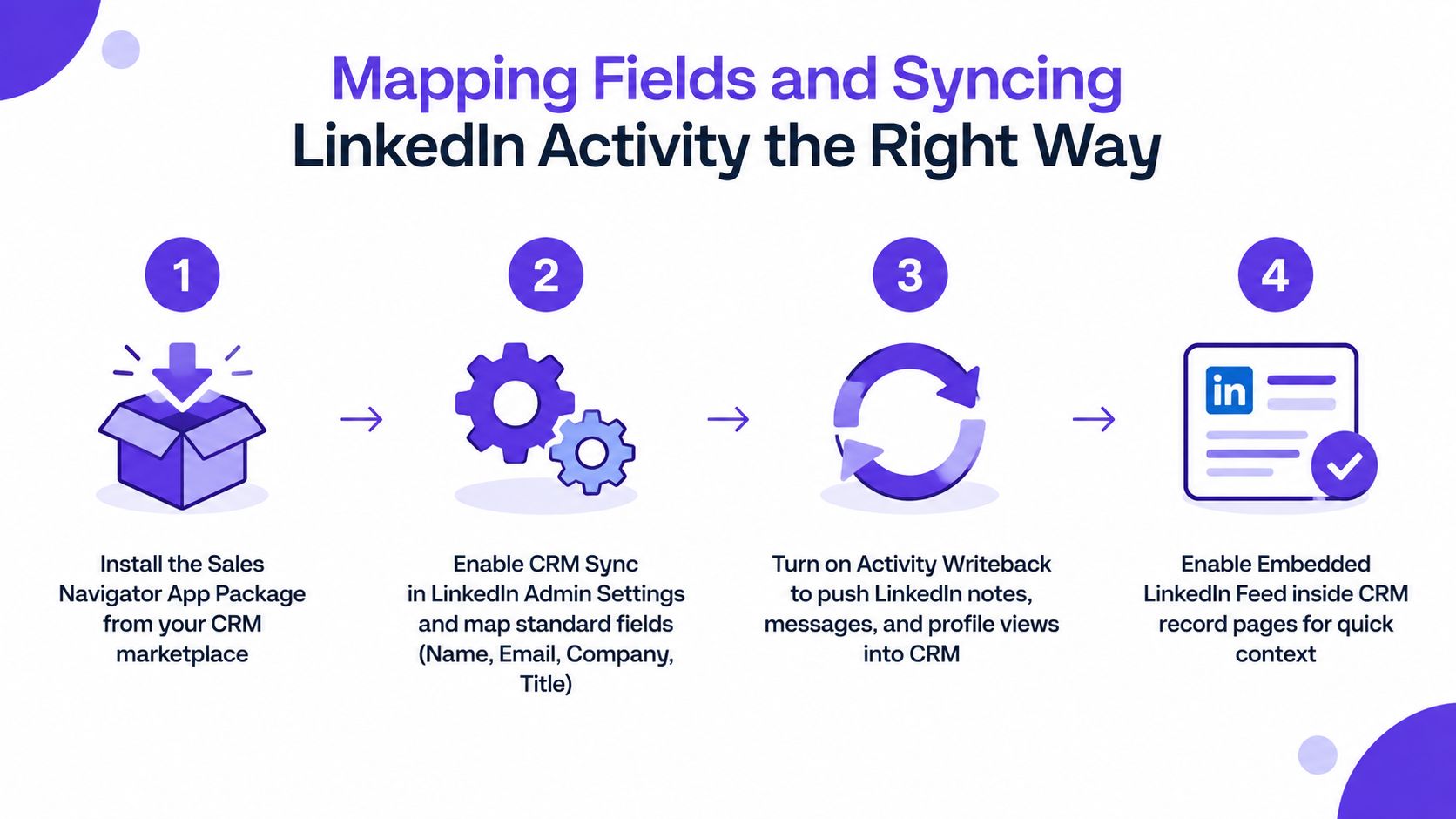
Mapping Fields and Syncing LinkedIn Activity the Right Way
Most failed integrations don't fail because authentication is mysterious. They fail because the team never decided which system owns a field. One administrator maps LinkedIn's company value over the CRM account name, another automation enriches the same record, and a rep edits the title manually. Soon the CRM has three versions of the truth and everyone blames the connector.
Start with the supported setup path. Install the Sales Navigator app package for the CRM, enable CRM Sync, then activate activity writeback and embedded experiences where the plan supports them. LinkedIn describes the flow as bidirectional through secure dedicated APIs, but bidirectional doesn't mean every field should freely overwrite every other field.
Establish field ownership first
Create a simple mapping sheet before enabling production sync. Include the field, source of truth, direction, conflict rule, validation requirement, and owner.
Identity fields: Name, email, title, company, and profile URL need consistent matching rules.
Account fields: Let the CRM own account hierarchy, segmentation, territory, and lifecycle stage.
Activity fields: Define which user actions write back and how reps should label or interpret them.
Intent fields: Store the signal and its context in a controlled note, task, or custom property instead of hiding it in an unstructured comment.
Email alignment matters because LinkedIn identifies mismatches as a cause of sync failure. Duplicate CRM records create another problem: each LinkedIn profile or account can link to only one CRM record, so the integration can't reliably decide where history belongs when the database contains competing contacts.
Pilot the unpleasant parts
Run the first test with a small user group and deliberately include clean records, duplicate records, changed jobs, missing emails, and accounts with similar names. Watch the Not Matched records rather than admiring the matched total. LinkedIn's Match Data Report shows matched and unmatched records across accounts, contacts, and leads. When unmatched records exceed the documented threshold, the downloadable CSV is capped at 1,000 unmatched records, so the report is also a reminder to fix hygiene before the backlog becomes unwieldy. The LinkedIn Match Data Report documentation explains the matching and service-control behavior.
A pilot checklist should include:
Confirm the correct Sales Navigator plan and CRM permissions.
Test field mappings with representative records.
Verify that writeback creates useful history without duplicating tasks.
Review Not Matched records and correct identity conflicts.
Confirm who owns cleanup, approval, and exception handling.
Document what the integration does not sync, especially company data.
Use enrichment selectively. If a matched LinkedIn signal needs an email address for an approved email workflow, enrich it through a separate, lawful process and verify the result before outreach. The principles in this guide to CRM data enrichment apply here, particularly around validation and source ownership.
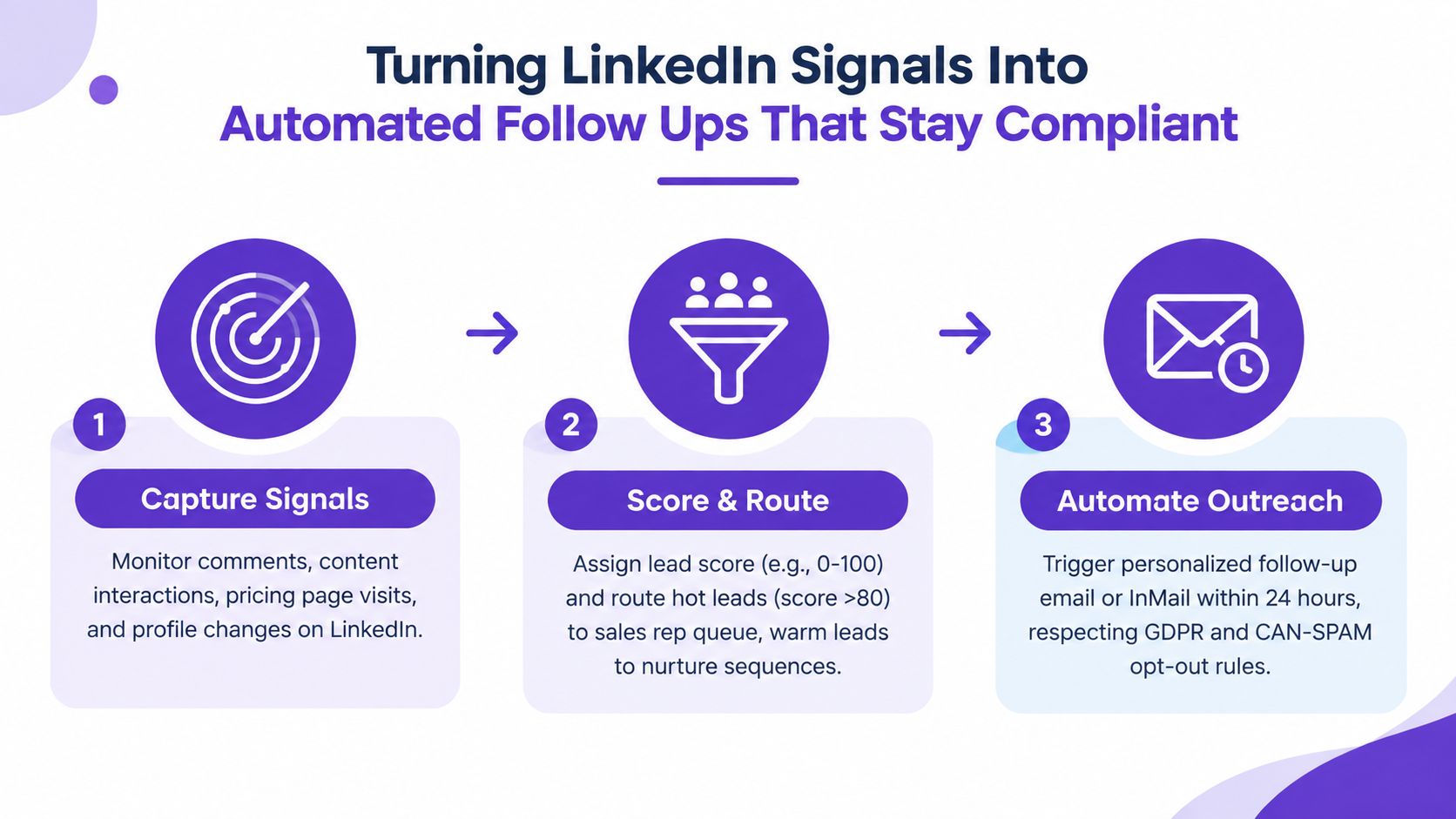
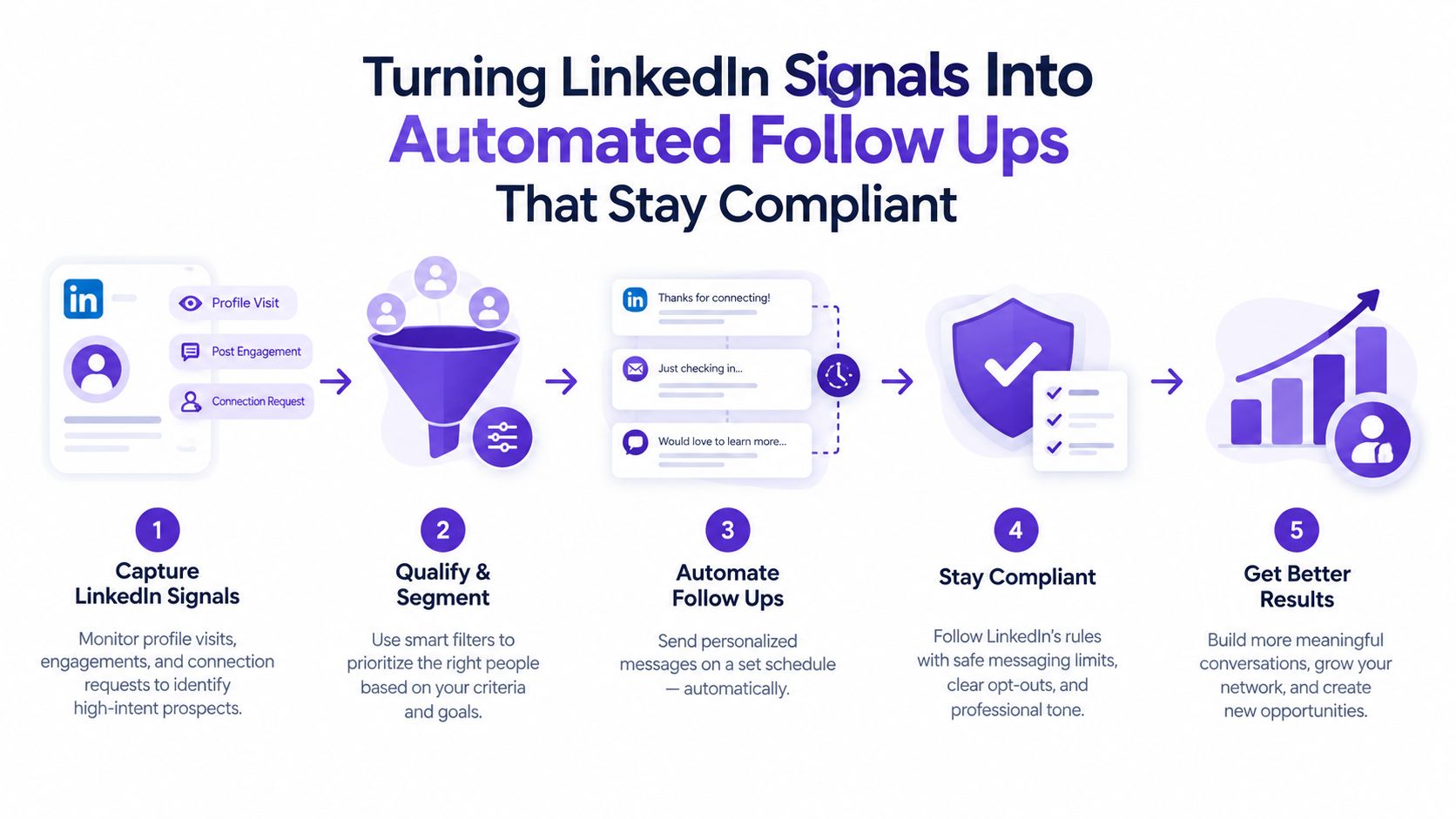
Turning LinkedIn Signals Into Automated Follow Ups That Stay Compliant
A useful workflow begins with behavior, not a database record. Comments, content interactions, job changes, company growth, pricing discussions, and demo-related language can help a seller decide whether a conversation deserves attention. The signal doesn't prove buying intent, but it gives the rep a reason to research and write something specific.
The operating sequence is straightforward:
Capture the signal: Record the relevant LinkedIn action, source context, person, company, and date.
Match the record: Send only matched people and accounts into the CRM or lead inbox.
Enrich when necessary: Use an approved external source for missing business contact data, then verify it.
Draft the follow-up: Use the observed behavior to create a relevant opener.
Approve and route: Let the owner review the message, select the channel, and apply opt-out or regional rules before anything sends.
RoverLead AI fits the lightweight end of this model. Its Signal Agents surface high-intent ICP leads from LinkedIn activity, add context and a personalized opener for approval, and pass the resulting lead into a lightweight inbox that supports pinning, tagging, follow-up, auto-draft, and auto-reply. It can also work alongside systems such as HubSpot, Pipedrive, Salesforce, or spreadsheets, so the team can use it as a signal layer rather than pretending LinkedIn is the entire CRM.
That distinction matters because LinkedIn's marketing API policy says member data can't be used for advertising, sales, or recruiting use cases such as identifying prospects, creating leads, enhancing CRM records, building audience lists, or sending mass messages. It also says member data should be displayed through the application and shouldn't be transferred or exported. Read the LinkedIn restricted use cases policy before approving any workflow that moves member data elsewhere.
Compliance checkpoint: A human approval step is useful, but it doesn't make an unapproved data transfer acceptable.
The safer pattern is to sell into an observed signal, not to mass-export a network. LinkedIn's own lead gen forms documentation offers a practical fallback when a CRM or marketing automation platform isn't supported: download leads as a CSV from Campaign Manager and upload them manually. That page also notes that some third-party partners don't support profile link fields, hidden fields, or custom checkboxes, so test the destination schema before promising a smooth handoff. The lead gen form integration documentation is the better reference than a vendor's optimistic flowchart.
For GDPR, CCPA, and internal audit needs, retain the purpose of the capture, the source context, the owner, the approval decision, and the suppression status. Don't let an AI draft become an autonomous message cannon. The goal is faster, more relevant follow-up with a traceable reason, not automation for its own sake. Teams comparing broader workflows can also review this guide to LinkedIn outreach automation.
Measuring What Matters From Sync Health to Pipeline Velocity
A record appearing in the CRM is not a revenue event. It's a technical event. The dashboard should separate integration health from commercial impact, otherwise a rising contact count will receive applause while follow-up remains slow and opportunities remain imaginary.
Track these operational measures first:
Sync error rate: How often jobs fail or records are rejected.
Event latency: How long it takes for an eligible LinkedIn event to appear in the CRM.
Field mapping failures: Which fields arrive blank, malformed, or in the wrong destination.
Duplicate creation rate: How often the workflow creates another person or account instead of updating the existing record.
Not Matched volume: Whether identity alignment and account hygiene are improving.
LinkedIn's Match Data Report refreshes every 24 hours and shows matched versus unmatched records across accounts, contacts, and leads. Its CSV export has a cap of 1,000 unmatched records when the total exceeds that threshold, which makes it suitable for recurring hygiene review but not a substitute for fixing the underlying matching rules. Use the report to identify patterns, not to create a heroic monthly cleanup ritual.
The business layer should follow the handoff:
Measure time from signal capture to owner assignment.
Measure time from assignment to first approved follow-up.
Compare reply rate for signal-led outreach with other prospecting sources.
Track accepted connection activity separately from downstream conversations.
Attribute opportunities only when the CRM records a meaningful LinkedIn signal and a defined sales action.
An independent review cited in LinkedIn community coverage reports a 15–20% cold connection acceptance rate in testing. That's a practical benchmark for LinkedIn-first prospecting, but it isn't a pipeline metric and shouldn't be treated as one. The same coverage emphasizes that Sales Navigator doesn't provide mass export or direct contact details, so multi-channel workflows need separate enrichment and verification. See the Sales Navigator CRM Sync guidance for the workflow limitations and practical context.
Finally, remember the scope of writeback. CRM Sync writes back user activities, not LinkedIn company data. Your dashboard should therefore distinguish person-level engagement from account-level research, rather than implying that every company insight arrived through the integration.
Your Lean Launch Plan for LinkedIn CRM Integration
A lean launch doesn't mean skipping governance. It means proving the workflow with a controlled slice of the sales motion before buying licenses, building middleware, or inviting the entire organization to create duplicate contacts at scale.
Use a seven-day sequence:
Day one: Choose one ICP, one CRM destination, and a small pilot group. Define what counts as a useful LinkedIn signal.
Day two: Write field ownership rules for identity, account, activity, intent, lifecycle, and suppression status.
Day three: Configure the approved native integration or lightweight inbox. Keep enrichment and outbound sending separate until the handoff is clean.
Day four: Test clean, incomplete, duplicate, and changed-job records. Review Not Matched results.
Day five: Have reps approve real follow-ups using signal context. Reject generic drafts and record why.
Day six: Inspect sync errors, latency, field failures, duplicate creation, and owner response time.
Day seven: Decide whether to expand, repair the data model, or stay lightweight.
Don't set the integration once and abandon it. LinkedIn's guidance warns that teams lose value when they ignore job changes, company growth, and content engagement or treat CRM Sync as a technical installation instead of a daily sales workflow. Don't treat LinkedIn as a full CRM either. It lacks the durable pipeline, complete message history, and follow-up orchestration your revenue team needs.
Stay lightweight when your main need is a clean, approved queue of intent-led leads. Invest in full enterprise sync when the organization needs embedded CRM context, formal matching, governed writeback, and the licensing economics make sense. The clever option is the one your team will maintain without turning every exception into a ticket.
RoverLead AI helps turn approved LinkedIn buying signals into a workable lead inbox with context, personalized openers, follow-up tools, and CRM-friendly routing. Visit RoverLead AI to set up your ICP and see how an intent-to-pipeline workflow can fit alongside your existing CRM.